Translation of YGod Embedded Videos in Languages Other than English
Step 1: Tap the YouTube settings button
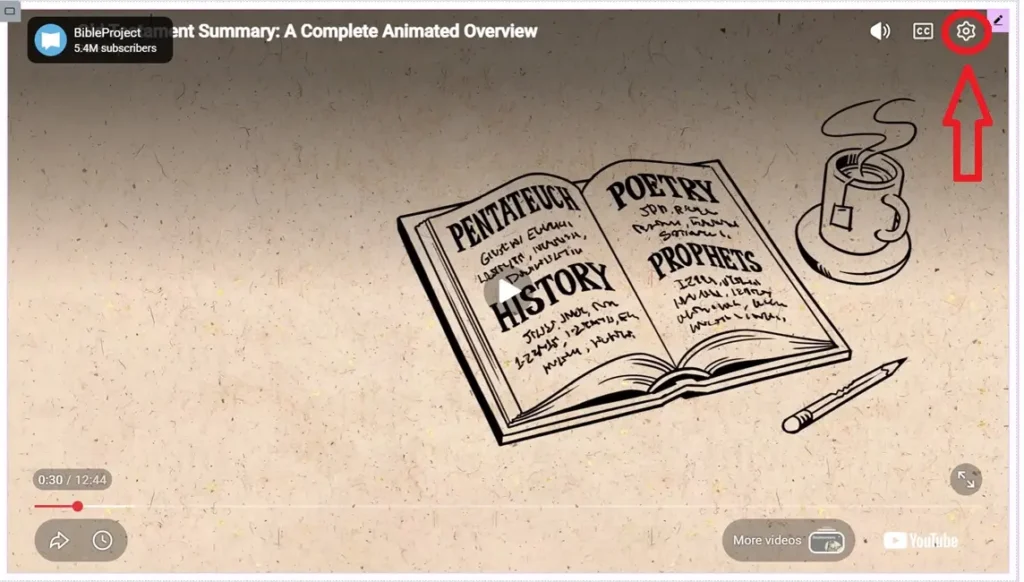
Start by playing the YouTube video. Tap the gear icon in the top-right corner of the video player. On many devices, you may need to tap the video once before the controls appear.
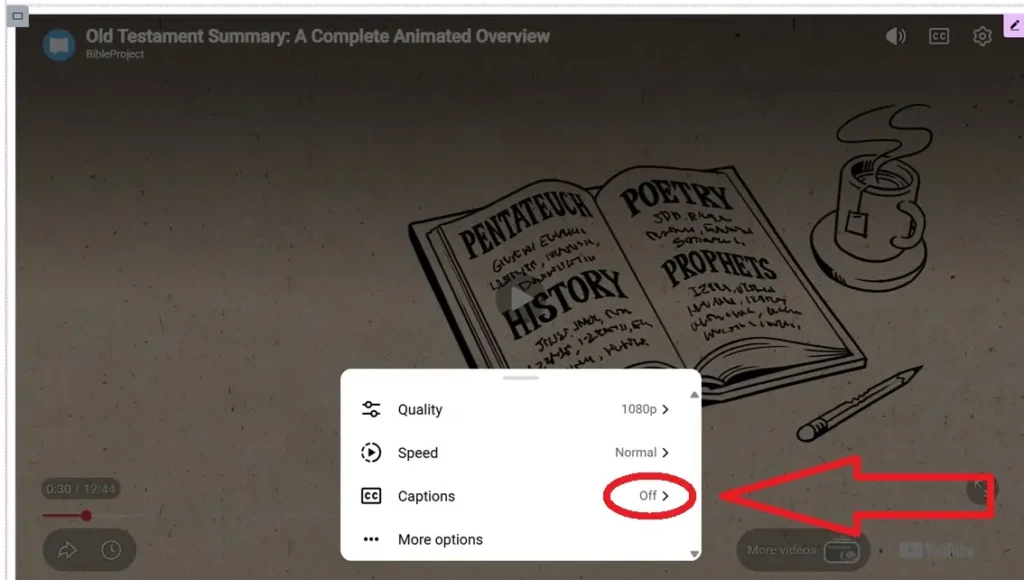
Step 2: Choose “Captions”
After tapping the settings button, look for Captions. If it says Off, captions are not currently showing. Tap Captions to open the list of available caption languages.
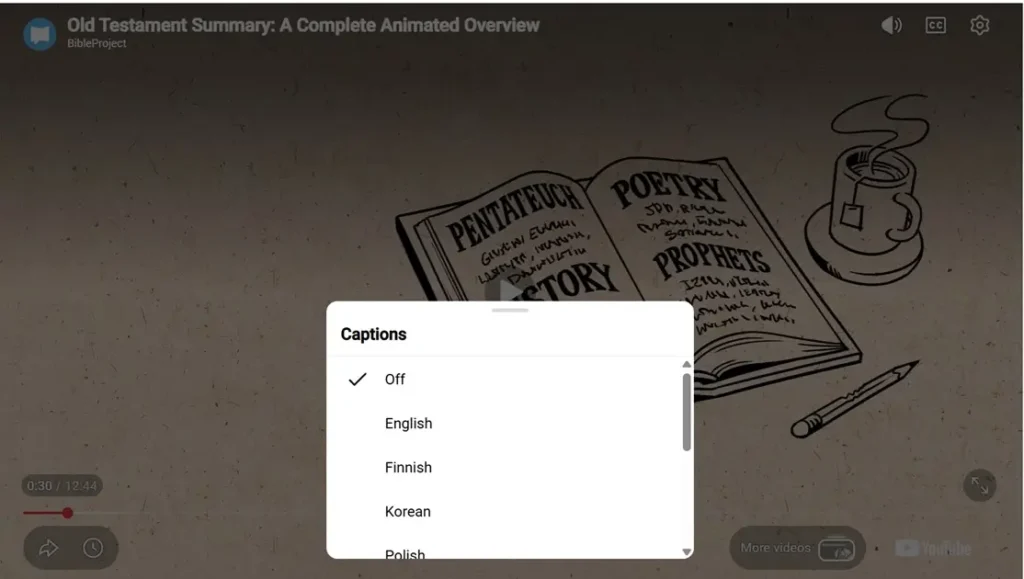
Step 3: Select your language
Choose the language you want from the list. If your language appears, tap it. If your language does not appear, the video may not have captions available in that language. Some videos may still offer Auto-translate, depending on the device, browser, and video settings.
What if my language is not listed?
Not every YouTube video has captions in every language. If your language is not listed, try these options:
- Look for Auto-translate in the caption settings.
- Open the video in the YouTube app or in a web browser and check again. Options sometimes differ by device.
- Use Google Chrome and try Chrome’s built-in translation tools for the page or transcript, when available.
- Try another video on the same topic that has captions in your language.
For best results, choose videos that already have accurate captions. Automatic captions and automatic translations can be helpful, but they are not always perfect.
Using Chrome to translate YouTube pages
If YouTube does not provide captions in your language, Google Chrome may still help translate parts of the page. Chrome can often translate the video title, description, comments, and other page text. It usually cannot perfectly translate spoken audio unless captions or transcript text are available.
On Chrome, look for a Translate icon near the address bar, or right-click/tap the page and choose Translate. Then select your preferred language.
Translation of YGod Pages & Articles Text
Intro to Translation of This Page or Other Articles
Many web browsers can translate written pages into another language. This can help you read YGod articles, blog posts, and other websites even when the page was originally written in English.
How to Translate This Page or Other Articles Using Google Chrome
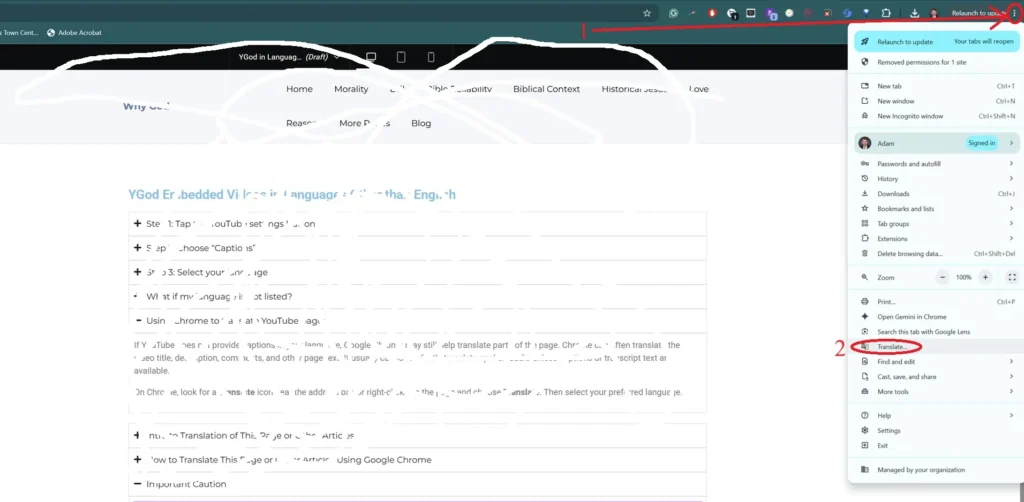
If you are using Google Chrome, look for the Translate icon near the address bar. You can also right-click on the page, or tap the browser menu, and choose Translate. Then select your preferred language.
On phones, Chrome may automatically ask if you want to translate the page. If it does not, open the browser menu and look for Translate.
This works best for written text on the page. It may not translate text that is part of an image, a graphic, or a video unless captions or transcript text are available.
Important Caution
Automatic translation can be very helpful, but it is not perfect. For Bible teaching, theology, and important spiritual questions, translated wording should be read carefully. When possible, compare with a Bible translation in your own language or ask a trusted mature Christian who speaks your language.
Other Free Resources About the Bible in Other Languages
Foundations by ICM in 65 languages
Foundations Youtube Channel (English)
Foundations Youtube Channel (English, but from African perspective)
(Arabic) The Journey Youtube Channel
(Espanol / Spanish) Foundations Youtube Channel
(Espanol / Spanish) Foundations Website
(فارسی / Farsi) Life Foundations Youtube Channel
(فارسی / Farsi) Life Foundations Website
(Hindi / हिन्दी) Foundations Youtube Channel
(Hindi / हिन्दी) Foundations Website
(Português / Portuguese) Encounter with the Word Youtube Channel
(Português / Portuguese) Encounter with the Word Website
(Русский / Russian) Biblical Foundations Youtube Channel